| Choose 1 of the following 3 options for placement of the Signal Antenna:  |  |  | | Easiest Set-Up:
Place the Signal Antenna inside, by a window | Better Performance:
Place the Signal Antenna outside of a window | Best Performance:
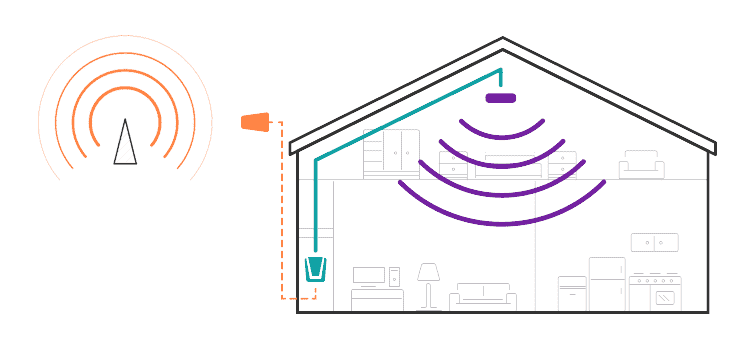
Place the Signal Antenna in attic or on roof | - Place the Signal Antenna indoors near a window where you get signal
- Place the Base Unit where you want to create a Cell Zone™
- Run the cable between the Signal Antenna and the Base Unit
- Plug it in and you are ready to talk
| - Place the Signal Antenna indoors near a window where you get signal
- Place the Base Unit where you want to create a Cell Zone™
- Run the cable between the Signal Antenna and the Base Unit
- Plug it in and you are ready to talk
| - Place the Signal Antenna indoors near a window where you get signal
- Place the Base Unit where you want to create a Cell Zone™
- Run the cable between the Signal Antenna and the Base Unit
- Plug it in and you are ready to talk
| Choosing the best location for the Signal Antenna provides the best performance and the largest area of improved signal. Determine the location that provides the strongest signal using the signal strength indicator on your cell phone. Find the location that provides the most bars of signal strength and place the Signal Antenna at or near that location. Avoid placing the Signal Antenna near metal such as wiring, A/C ducts, metal siding, truss plates, etc. When connecting the cable to the antenna, run the cable straight down from the antenna. Avoid draping the coax near the antenna. THIRD: Mount Base Unit and connect cables You may need to adjust the position of the Base Unit or the Signal Antenna depending on the length of your cable. Ensure that there is adequate distance between the Base Unit and the Signal Antenna (at least 15 feet). Check the signal strength on your cell phone before plugging in the Base Unit’s power cord. Then, turn off your cell phone and plug in the Base Unit’s power cord. Turn your cell phone back on and check the signal strength. If the signal strength has improved, your zBoost is working. zBoost® Base Unit Light Indicators Upon initial power-up of your zBoost®, all lights may flash for approximately 5 seconds. This is a normal condition at power-up. |  | Install Light The condition of the Install light reflects the quality of the installation. Following initial power-up, a red (solid or blinking) Install light indicates that the positioning of zBoost® component(s) is reducing the performance of your zBoost® system. It may be that you are receiving an acceptable signal boost; however, repositioning the Signal Antenna and/or Base Unit Antenna to maximize separation between the Signal Antenna and the Base Unit will improve your zBoost® performance. A red Install light accompanied with a red Signal light may indicate that the signal received from a cell tower is too strong. To reduce the overpowering signal, relocate the Signal Antenna to an area that receives less signal, which may be indoors or a lower elevation. | |  | Signal Light The Signal light indicates the condition of communication between a wireless device and its cellular network. Following initial power-up, the Signal light will flash green (800MHz band) when a call is in progress or periodically during normal network communication. A red Install light accompanied with a red Signal light may indicate that the signal received from a cell tower is too strong. To reduce the overpowering signal, relocate the Signal Antenna to an area that receives less signal, which may be indoors or a lower elevation. | |  | Power Light The Power light indicates operation under normal or abnormal conditions. Following initial power-up, the presence of a solid green Power light indicates normal conditions. While in use, an alternating orange or solid green Power light (with no other negative indicators by the Signal or Install light) reflects normal conditions. A flashing green Power light (without any other indicators from the Install or Signal light) means that a software error has been detected. Reset by removing power and reconnecting after 10 seconds. | |